

hey buddy, we provide "Popup download button Html code for blogger" for you.
if you are the owner of a blogger or you manage the website BlogSpot .com and
you give the download files on your website. so, this article "Popup download
button Html code for blogger" is very helpful to your website. This is a
next-level download button for you.
How to work download button Html code for blogger?
This timer code is very good for your website. you click the download button
will appear in the popup window. and it shows some 20-second timer.
timer time was finished will be shows download file link. you want to download
the file you press the get link button. this script advantage is that visitors
spend more time on your blog. it improves your Revenue and helps to fastly
rank on your website on google, firefox, or Any other Search engine.
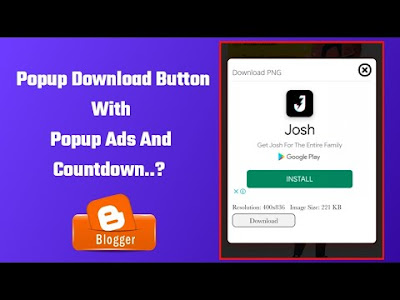
This script is not a normal download button. if you get a Google Adsense
approval on your website. you will get extra benefits on this “download button
Html code for blogger” popup script. this script has two ad spaces on the
popup. It increases your revenue by double.
benefits of download button Html code for blogger
- Increase your CTR on your Blog
- Improve user experience
- Improve your revenue
- Download timer added on this script
- Improve your website ranking
- The Best Solution for the download button
You want to add this script "download button Html code for blogger" on the
blogger website. just follow the simple steps below. first, you hit the
download button and download the "download button Html code for blogger"
script on your device.
How to Add Popup Download button HTML code for blogger Step by step
- Step 1: Open your Blogger Account Dashboard
- Step 2: Select the Theme section sidebar
- Step 3: Select the Edit HTML option
- Step 4: Press CTRL + F to find the </head> tag.
Step 5: Copy the CSS script on the Downloaded File and paste it over
the </head> code.
<!--Download popup script - provided by by Pixabin.com-->
<style>
.modal {display: none;position: fixed; top: 0; right: 0; bottom: 0; left: 0; text-align: left; background: rgba(0,0,0, .9); transition: opacity .25s ease;z-index:999; }
.Pixabin-pop__bg{ position: absolute; top: 0; right: 0; bottom: 0; left: 0; cursor: pointer; }
.Pixabin-pop { display: none; }
.Pixabin-pop__inner { transition: top .25s ease; position: absolute; top: -20%; right: 0; bottom: 0; left: 0; width: 50%; margin: auto; overflow: auto; background: #fff; border-radius: 5px; padding: 1em 2em; height: 50%; }
.Pixabin-pop__close { position: absolute; right: 1em; top: 1em; width: 1.1em; height: 1.1em; cursor: pointer; }
.Pixabin-pop__close:after, .Pixabin-pop__close:before { content: ''; position: absolute; width: 2px; height: 1.5em; background: #333; display: block; transform: rotate(45deg); left: 50%; margin: -3px 0 0 -1px; top: 0; }
.Pixabin-pop__close:hover:after, .Pixabin-pop__close:hover:before { background: #aaa; }
.Pixabin-pop__close:before { transform: rotate(-45deg); } @media screen and (max-width: 768px) { .Pixabin-pop__inner { width: 90%; box-sizing: border-box; } }
.adpop-top{height: 40px; width: 100%; border-bottom: 1px #E5E5E5 solid;}
.adhtml{margin: 14px 0 4px; min-height: 260px;}
.adpop-content{height: 330px;}
#Pixabin-downloadx{width: 150px;
height: 50px;
background-color: $fRed;
color: white;
border-radius: 30px;
display: flex;
align-items: center;
justify-content: center;
font-family: "Raleway";
position: absolute;
top: 50%;
left: 50%;
transform: translate(-50%,-50%);
cursor: pointer;
/*border: 2px solid $fWhite;*/
transition: background-color 0.5s;
}
}
.download-pop{line-height: 16px; margin: 5px 0 5px;font-size: 14px;position: relative;}
.btn-at{display: block; height: 50px; color: #fff; font-size: 24px;text-transform: uppercase; background: #005af0;text-align:center; line-height: 50px;width: 200px; margin: 150px auto; transition: all 0.4s ease-in;}
.adpop-top h2{margin:0}
</style>
<!--Download popup script - provided by by Pixabin.com-->
Step 6: Again Press CTRL + F again to find the </body> tag
Step 7: Copy the Second html script on Downloaded File and paste it
above the </body> code.
<!--Download popup script - provided by by Pixabin.com-->
<script>
//<![CDATA[
const modal = document.querySelector("#my-modal"); const btn = document.querySelectorAll(".btn-at"); const closeModal = document.getElementsByClassName("Pixabin-btnclose")[0]; for (let i = 0; i < btn.length; i++) { btn[i].addEventListener("click", function () { modal.style.display = "block"; }); } btn.onclick = function () { modal.style.display = "block"; }; closeModal.onclick = function () { modal.style.display = "none"; }; window.onclick = function (event) { if (event.target == modal) { modal.style.display = "none"; } };
var downloadButton = document.getElementById("Pixabin-downloadx"); var counter = 20; var newElement = document.createElement("span"); newElement.innerHTML = "Please Wait 20 sec"; var id; downloadButton.parentNode.replaceChild(newElement, downloadButton); function startDownload() { this.style.display = 'none'; id = setInterval(function () { counter--; if (counter < 0) { newElement.parentNode.replaceChild(downloadButton, newElement); clearInterval(id); } else { newElement.innerHTML = "Please Wait" + " " + counter.toString() + " " + " sec.... "; } }, 1000); }; var clickbtn = document.getElementById("btn-at"); clickbtn.onclick = startDownload;
//]]>
</script>
<!--Download popup script - provided by by Pixabin.com-->
- Step 8: Save all changes to the theme.
- Step 9: Open the blogger account again and open the new post.
- Step 10: Now change the HTML display post format.
Step 11: Copy the Third HTML script on the Downloaded File and paste it
where you want it in the blog post.
<!--Download popup script - provided by by Pixabin.com-->
<div class="btn-at" id="btn-at">Download</div>
<div class="modal" id="my-modal">
  <div class="Pixabin-pop__bg">
  <div class="Pixabin-pop__inner">
    <div class="adpop-top">
 <label class="Pixabin-pop__close Pixabin-btnclose"></label>
    <h2 style="margin: 0px; text-align: center;">Get your Link</h2>
    </div><div class="adpop-content">
     <div class="adhtml">
Ad Code
 </div>
<div class="download-pop" style="text-align: center;">
        <a class="button" href="#" id="Pixabin-downloadx">Get link</a>

    <div class="adhtml">
Ad Code
 </div>

</div>
    </div></div></div></div>
<!--Download popup script - provided by by Pixabin.com-->- Step 12: Check your post preview and Publish the post.
Step 13: Well done Popup download button Html code for blogger is ready to
Rock
Custom modification:
Replace href=”http://localhost/Pixabin/” with the URL of the download
file.
- You modify var counter = 20 to you change time on Script
You want to change the button design just modify the CSS script.
You want to add ads just Remove the Ad Code and Replace the google ad script
on the post Button Script.
Video Guide 👇
Final Words
I hope this Article “Popup download button Html code for blogger” Helps to
improve your website. thank you For reading this article. visit again the my
site and keep Support on my website. Thank you!